In 2025 SuperBeam celebrates it's 36th Birthday!
Do you design houses, extensions, loft conversions or other small building works? If you need a quick and effective way to produce calculations for steel and timber beams and columns take a look at SuperBeam.
Key features
-
Steel beam design and checking to BS449 Part 2
-
Timber, glulam and flitch beam design and checking to BS5268 Part 2
-
Column design and checking to BS449, with simple base plate sizing
-
Checking of timber posts and studs
-
And all in one easy to use and affordable program! Price list

The SuperBeam desktop

SuperBeam runs on Windows 7, 8, 10 and 11 (32-bit or 64-bit) systems; Windows XP and Vista are no longer supported. You can choose the font(s) used to display and print calculations. A larger font is easier to read; a smaller font shows more information without scrolling - the choice is yours! You can choose from one of 24 colour schemes (themes). These screenshots use the Sapphire theme. You can see them all on our themes preview page.
A SuperBeam project is made up of one or more 'items'. An item can be a steel or timber beam, steel column, timber post or stud or text page. The script option lets you generate calculation sheets for members such as pressed steel lintels which are sized using safe load tables. Each item calculation appears in a separate window. Items are listed in the Project Manager at the left of the program window.
You can edit items by double clicking on the window, clicking on the toolbar pen icon, selecting 'Edit' from the menu or by pressing Alt+E as suits your preferred way of working.
Project options
The Project details dialog lets you enter job-related data in four fields. The default field names are user-definable. You can choose whether to enter total loads or enter separate dead and live components of loads. The option selected applies to the whole project, not individual items. Most users find that total load entry is simpler; dead/live load entry allows steel beam deflection to be checked against live load deflection only, and automatically calculates the required factor for steel bearing padstones and bearing plates.
Beam design

In SuperBeam the load, steel, steel bearing, timber and timber bearing data is entered in a multi-page modeless dialog. Select the required page, enter the data, then press Apply to commit any changes without closing the dialog; you will see the updated calculations in the corresponding window. Undo restores the data to what it was before you started editing or last pressed Apply.
So to work out a typical beam you enter the loads, click on Apply, click on the Steel tab (see below) and make any changes, then Apply again. The required size is shown on the button immediately under Consider (see below) - you can click on the button to manually choose an alternative section, if you don't want the one that the program has selected. Then click on the Bearings tab (see below) and change the bearing details as necessary. Press Apply once more then close the dialog and you're done.


You can display and print beam loading and bending moment and shear force diagrams
Steel beam design and checking

This page shows options relating to steel beam calculations. You choose the section type and steel grade, the minimum and maximum acceptable section widths and whether SuperBeam is to select the lightest or shallowest suitable section or check the one you have chosen. As elsewhere, you can add your own notes to the standard calculation.

SuperBeam lets you design simple padstone and bearing plate bearings for your steel beams.
Timber beam design and checking

As with the steel page, this page is where you enter design parameters for timber beams, including the grade of timber and loading duration. If you enter the member width and depth the member will be checked; if you enter a width or depth of '?' the program will calculate the required value.
Steel column design and checking

Steel column loads are entered on the first page of a tabbed dialog. You can enter axial loads or loads that create moments and also enter additional moments acting on the member. As for beams, SuperBeam checks your choice of section or selects the first suitable lightest or shallowest section depending on your choice (on the second page, not shown here).

Column base plates are sized using the equivalent area method. SuperBeam determines the minimum required size from the applied load and concrete strength then rounds this up.
Timber posts and studs

Timber posts and stud design and checking is very similar to steel column design: posts and studs can be axially loaded only or axially loaded and subject to bending to about the either axis.
Text pages

SuperBeam includes a basic text editor that will allow straightforward pages to be created. Extra tags within the text handle tabs, underlining and overlining (for titles) and tab setting. You can also add OLE object pages to your project: these contain data supplied and maintained by another application on your system, for example a page of spec notes produced using Microsoft Word.
Page headings
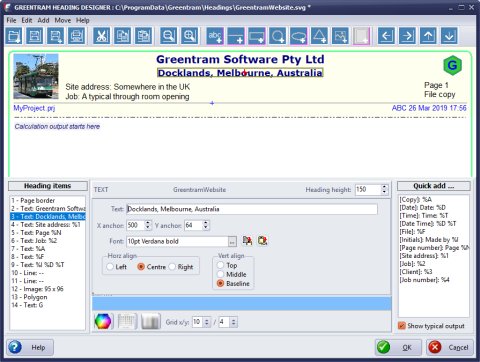
From 2019, SuperBeam, ProSteel and EuroBeam include a new page heading designer which lets you add logos or pictures to your headings as well as the option to add borders to your calculation sheets. More .... You can create and save multiple page headings which can be switched at will. SuperBeam, ProSteel and EuroBeam share the same headings: any heading created in one of these programs is instantly available to the other.
Output
As well as viewing your calculations on screen, SuperBeam gives you the following options:- Send to any currently installed printer
- Output as a PDF file using the inbuilt PDF generator
- Copy program output in RTF format to paste into Word or other application
The demo version only allows viewing of calculations on screen and only handles steel sections with a rolling weight of 50kg/m or less..
Price List
If you already own a copy of SuperBeam, ProSteel or EuroBeam you can find your prices by going to www.superbeam.co.uk/renew.
You will need your Greentram user number and postcode.
If you don't yet have any of our programs see our ordering information page.
All our programs run on Windows 7/8/10/11 systems (32 or 64 bit). Windows XP and Vista are no longer supported. Our programs are not currently available for MAC systems.